Welcome to MHLE
The Multi-Headed Learning Engine is an AI-powered learning platform designed for serious learners and knowledge workers. Whether you are a PhD candidate, MBA professional, research scientist, lifelong learner, or a high school student pursuing research, technology, leadership, or academic achievement — MHLE analyzes your notes from four expert perspectives simultaneously to help you develop rigorous, multi-dimensional understanding of complex topics.
1 Getting Started
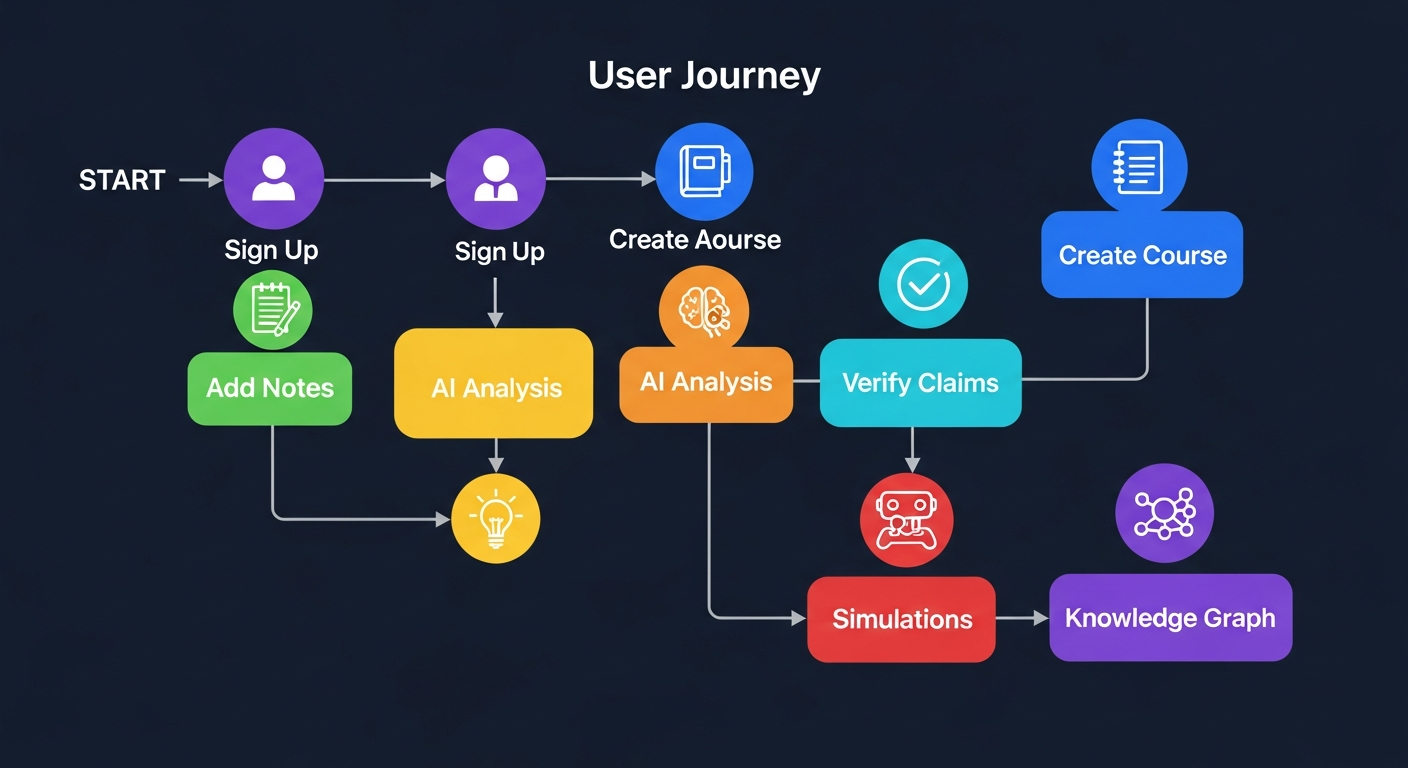
Your Learning Journey
First-Time Setup Checklist
- Create your account (email + password)
- Select your persona during onboarding
- Create your first course
- Add your first note
- Review the AI analysis
- Explore the Usage Dashboard
2 Creating an Account
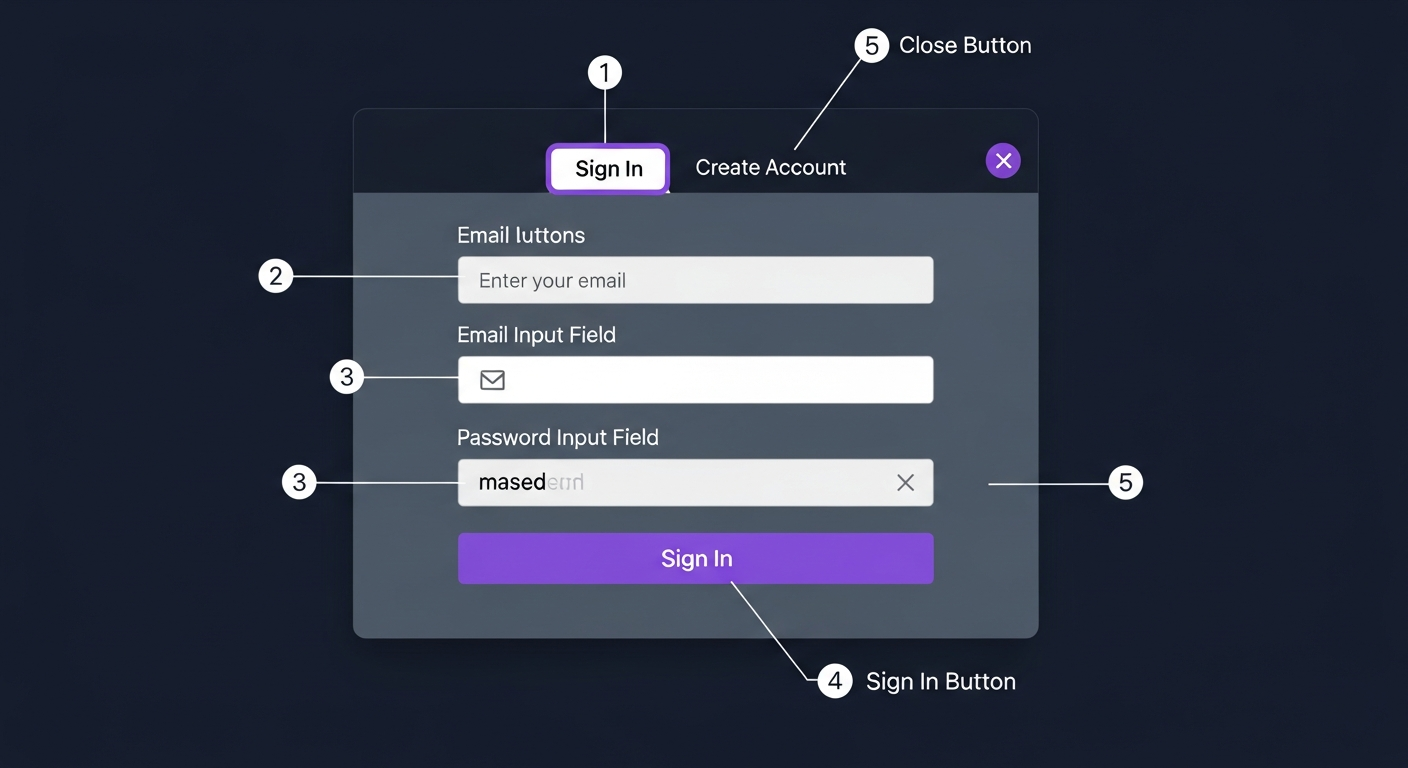
Step-by-Step Registration
- 1 Click "Get Started Free" or "Sign In" button in the top-right corner
- 2 Select the "Create Account" tab
- 3 Enter your Full Name, Email Address, and Password
- 4 Click "Create Account" button
- 5 Complete the persona selection step during onboarding
- 6 You're now logged in and ready to start!
Free Trial
New accounts automatically receive a free trial of Pro-tier features. Once the trial expires, your account reverts to the Free plan. No credit card is required to start.
3 Persona System
MHLE personalizes your entire experience — AI analysis depth, UI labels, quota rules, and weekly digest emails — based on a user persona that describes who you are as a learner. You select your persona during onboarding, and the system also infers it automatically from your usage patterns. You can update it at any time in Settings.
The 9 Personas
PhD or Masters student synthesizing research for dissertations and theses. Gets enhanced PDF upload quotas and access to PhD-specific toolkits.
Part-time student balancing career advancement with advanced coursework. Gets access to the Reimbursement Letter PDF generator.
Professional researcher synthesizing cross-disciplinary literature. Gets enhanced PDF upload quotas and bulk PDF pipeline access.
Self-directed adult learner pursuing intellectual enrichment across diverse topics.
Undergraduate student managing coursework, exams, and foundational research.
High school student juggling multiple AP courses and exam prep under time pressure.
High school student conducting independent research for competitions, college apps, or science fairs.
Self-taught coder and AI enthusiast learning via audio, video, and diverse content formats.
Student active in debate, Model UN, or policy competitions — thrives on multi-angle analysis and scenario simulations.
Case method, strategy, finance, and operations. Gets Case Questions in Exam Focus Mode, discipline-specific Wicked Problem scenarios, and reimbursement letter access.
Research methods, modeling, and applied projects. Gets Defense Questions in Exam Focus Mode and STEM-tailored simulation scenarios.
Briefs, stakeholder analysis, and policy memos. Gets Policy Memo Questions in Exam Focus Mode and governance-focused simulation scenarios.
Seminar readings, critical synthesis, and theory. Gets Seminar Questions in Exam Focus Mode and humanities-focused simulation scenarios.
Case briefs, statutory analysis, and legal argumentation. Gets Bar Exam Questions in Exam Focus Mode and legal-practice simulation scenarios.
Evidence-based practice, clinical guidelines, and patient advocacy. Gets Clinical Questions in Exam Focus Mode and healthcare simulation scenarios.
What Your Persona Changes
| What Changes | How It Changes |
|---|---|
| AI Analysis Style | Prompt modifiers shift tone and depth — a PhD student gets dissertation-level rigor; an AP student gets exam-focused clarity |
| UI Labels | Dashboard copy adapts to your persona (e.g., "Your Research" vs. "Your Courses") |
| Upload Quotas | Graduate / Doctoral and Research Scientist personas receive 2× the base daily PDF upload limit |
| Weekly Digest Emails | Digest content, insights, and call-to-action language is tailored to your learning context |
| Persona-Specific Tools | Unlocks features exclusive to your persona — Master's personas get the full Master's Module (Section 23) with discipline-specific exam questions, simulations, and collaborative workspaces |
Changing Your Persona
Go to Settings → Profile → Persona and select any persona from the list. Changes take effect immediately. The system also re-classifies your persona automatically on a periodic schedule based on your behavior, but your self-selected persona always takes priority.
4 Understanding the Dashboard
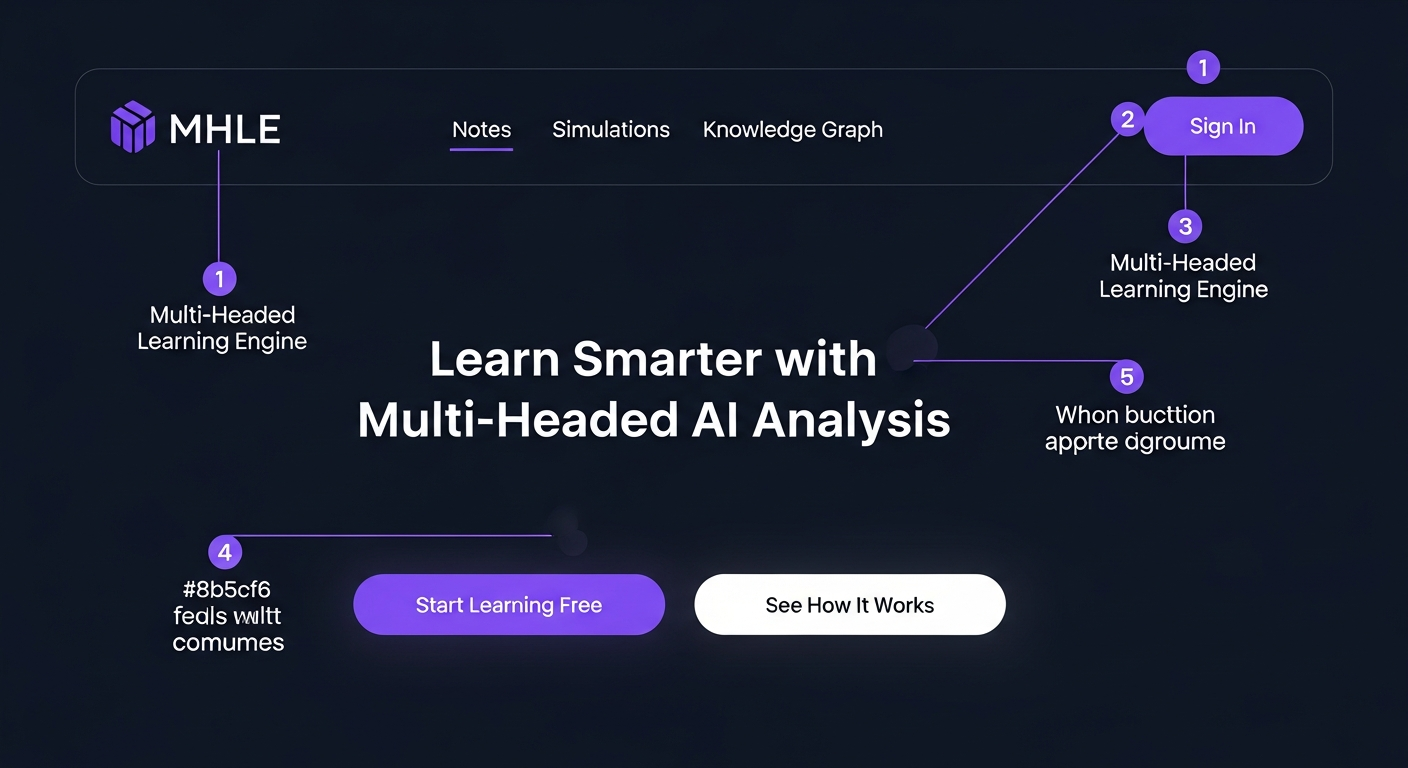
Main Navigation Tabs
| Tab | Purpose | Tier |
|---|---|---|
| Notes | Add text, PDFs, audio, and images; trigger AI analysis | Free |
| Simulations | Generate Wicked Problem scenarios and receive Reviewer 2 critique | Basic: Free · Advanced: Pro |
| Knowledge Graph | Visual map of conceptual connections across all notes | Pro |
| AI Podcast | Generate and play narrated audio podcasts from your notes | Pro |
| Weekly Pulse | Automated fact-verification status of claims in your knowledge base | Pro |
| Synthesis Papers | Generate structured research documents from your knowledge graph | Enterprise |
| Living Portfolio | Your shareable public intellectual journey page | Pro |
| Groups | Study Groups, Note Requests, and collaborative features | Partial: Free · Full: Pro |
| Referral Hub | Refer others, earn points, and redeem rewards | Free |
5 Creating Courses
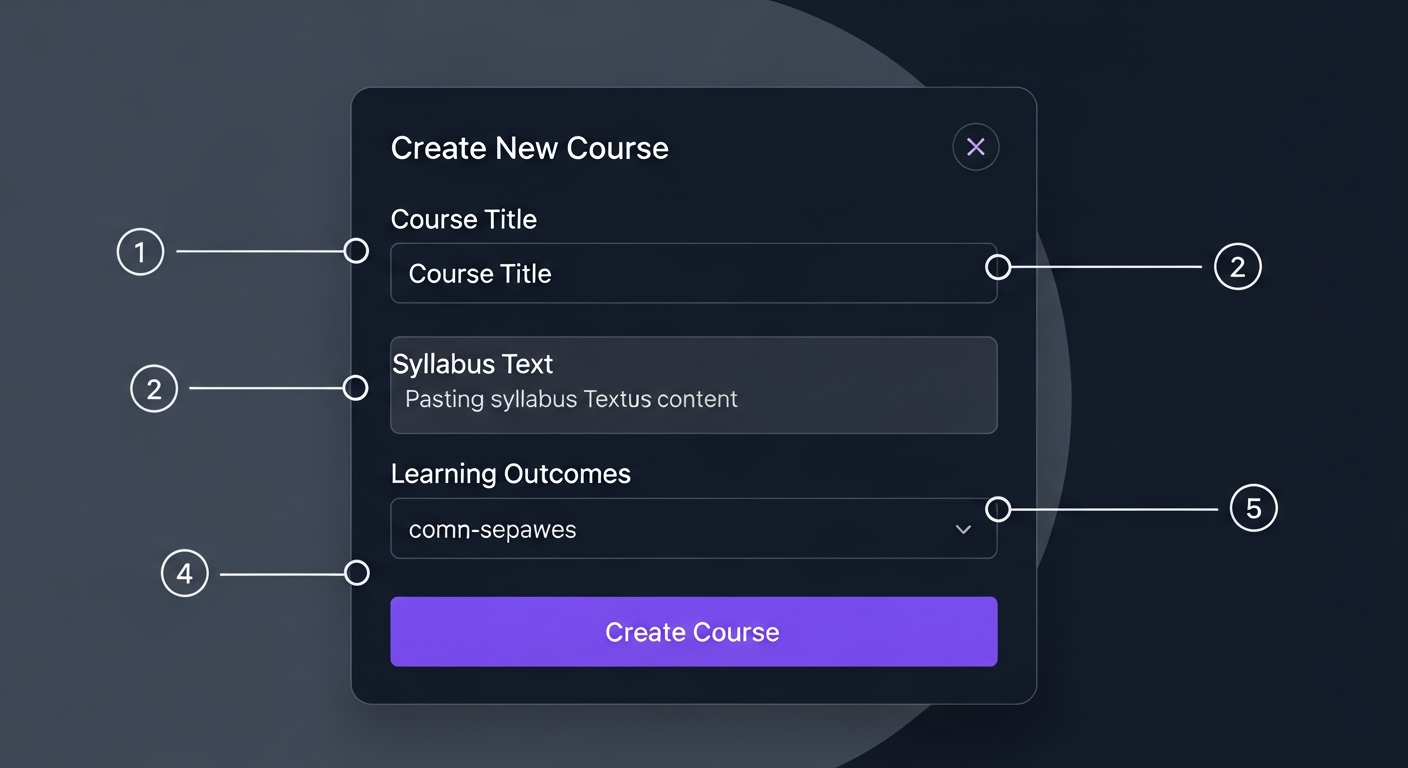
Why Create Courses?
- Organize notes by subject
- Get targeted study recommendations
- Track progress through syllabi
- Generate relevant simulations
How to Create a Course
- 1 Click "New Course" button in the header
- 2 Enter Course Title (e.g., "Advanced Microeconomics")
- 3 Paste your Syllabus Text (optional but recommended)
- 4 Add Learning Outcomes (comma-separated)
- 5 Click "Create Course"
Course Limits by Plan
6 Adding Notes
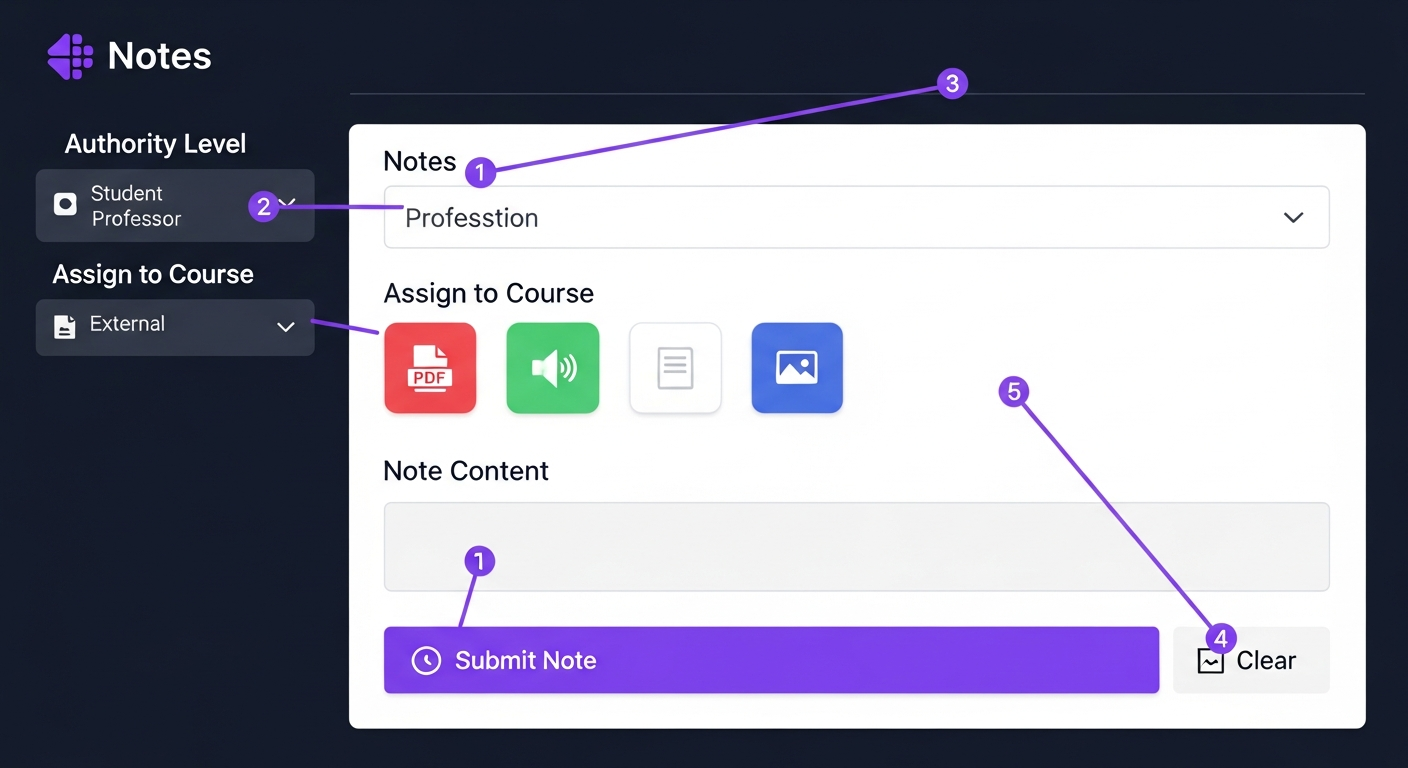
Authority Levels Explained
Your own notes, opinions, or interpretations
Direct quotes from professors or textbooks
Information from external sources
File Upload Options
| File Type | Formats | What Happens |
|---|---|---|
| Text is extracted automatically | ||
| Audio | .mp3, .wav, .ogg, .m4a, .webm | Transcribed with speaker detection |
| Image | .png, .jpg, .jpeg, .gif, .webp | Analyzed for text and diagrams |
Daily Upload Limits
| Limit | Free | Pro | Enterprise |
|---|---|---|---|
| Daily Notes | 10 | 50 | Unlimited |
| Daily PDF Uploads | 5 (10 for PhD/Researcher) | 20 (40 for PhD/Researcher) | Unlimited |
| Daily Audio Uploads | 2 | 10 | Unlimited |
| Notes per Course | 50 | 500 | Unlimited |
7 Understanding AI Analysis
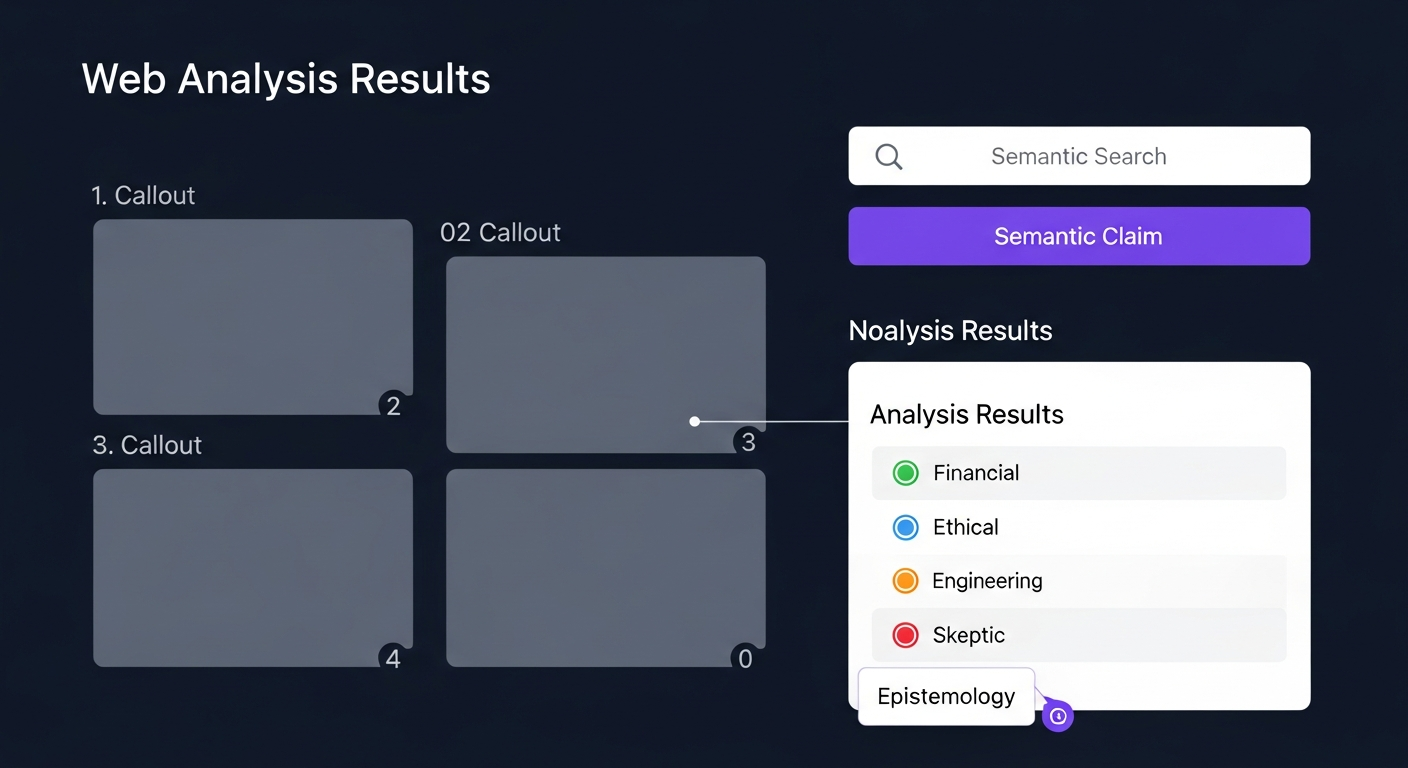
The Four Analysis Lenses
"What are the cost-benefit tradeoffs?"
"Who benefits? Who might be harmed?"
"How would this actually work?"
"What evidence supports this claim?"
Epistemology Tags
Persona-Adapted Analysis
Your selected persona influences how analysis is framed. A PhD student receives dissertation-level depth and methodology critique; an AP student gets exam-focused summaries and recall prompts. The four lenses remain the same — only the emphasis and vocabulary adapt.
Monthly AI Analysis Limits
8 Semantic Search
What is Semantic Search?
Unlike keyword search, semantic search finds notes by meaning, not just matching words. Searching for "financial risk" will also find notes about "investment uncertainty" or "market volatility".
- 1 Locate the search bar in the Synthesis Panel
- 2 Type your query using natural language
- 3 Click "Semantic Search"
- 4 Review results ranked by relevance
9 Fact Verification
The Verify Claim feature checks factual claims against the internet using AI-powered research.
- 1 Click "Verify Claim" button
- 2 Enter the claim (e.g., "Einstein published relativity in 1905")
- 3 Click "Verify"
- 4 Review results with verification status and sources
Monthly Verification Limits
| Plan | Monthly Verifications |
|---|---|
| Free | 10 |
| Pro | 200 |
| Enterprise | Unlimited |
10 Wicked Problem Simulations
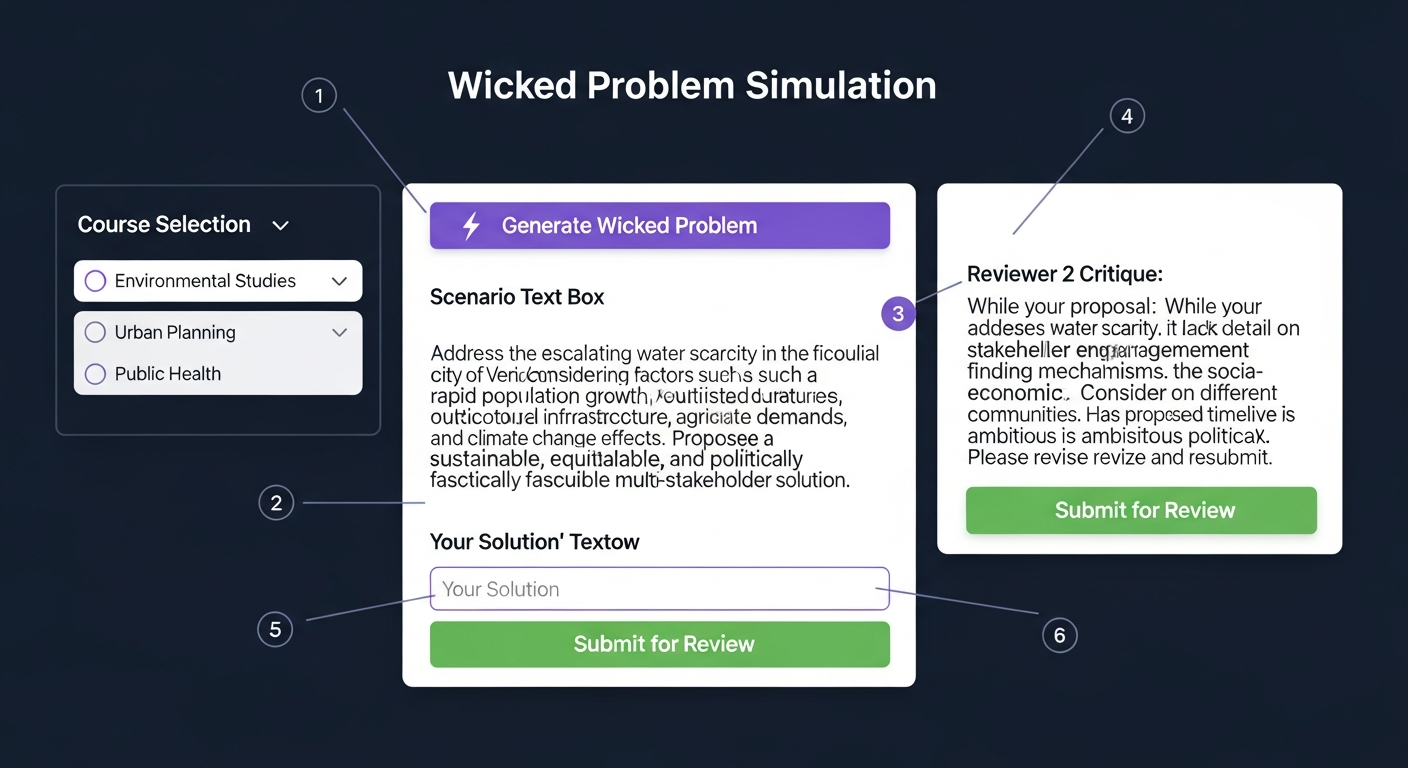
What are Wicked Problems?
"Wicked problems" are complex scenarios with no clear solution — they help develop critical thinking skills through realistic, multi-faceted challenges. Basic simulations are available to all plans; advanced (AI-critiqued) simulations require Pro or higher.
- 1 Click the "Simulations" tab
- 2 Select a course (optional) for context
- 3 Click "Generate Wicked Problem"
- 4 Read the scenario carefully
- 5 Write your solution in the textarea
- 6 Click "Submit for Review"
- 7 Receive "Reviewer 2" critique and feedback Pro
11 Knowledge Graph
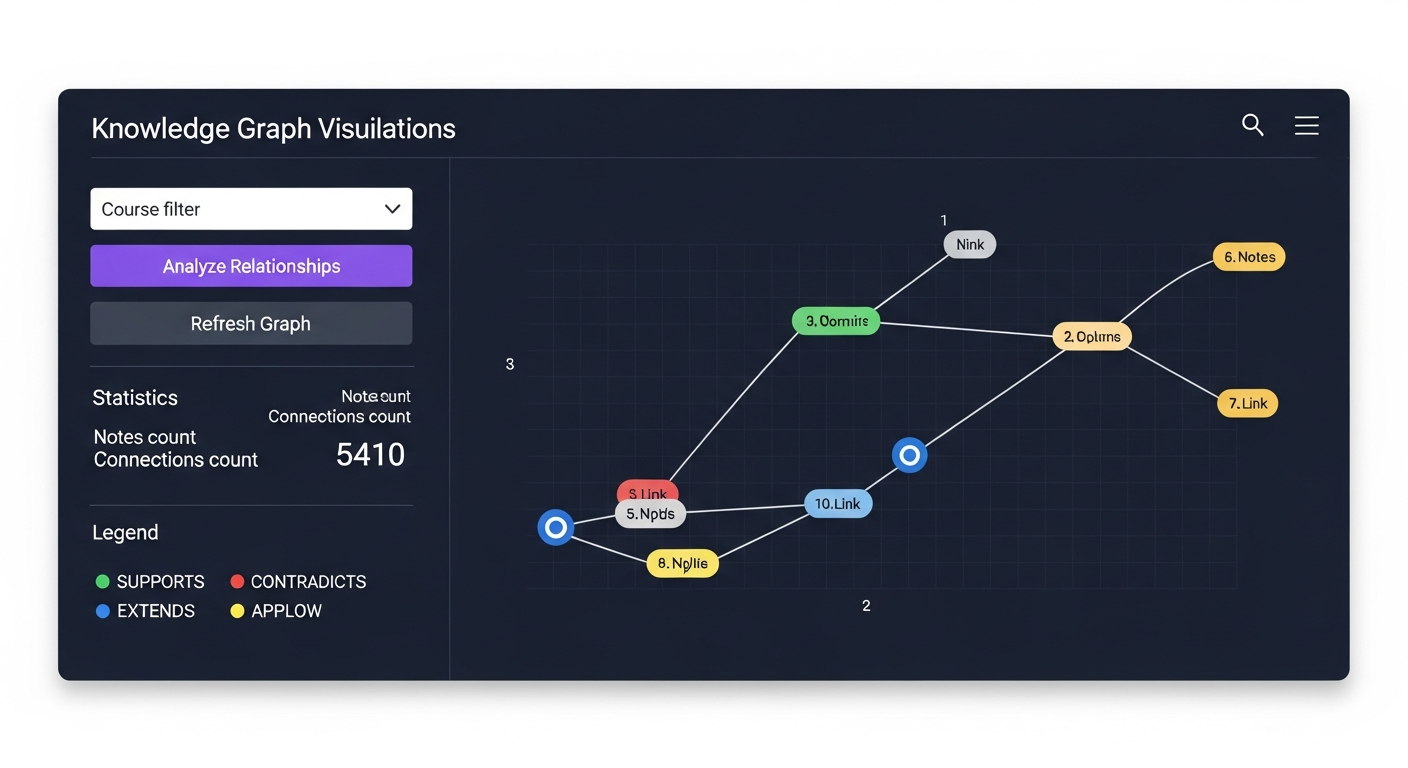
Pro Feature
The Knowledge Graph is available on Pro and Enterprise plans.
Relationship Types
12 Gap Hunter & Study Recommendations
Gap Hunter analyzes your notes against the course syllabus to identify areas that need more study. In collaborative contexts, it also cross-references your gaps against topics covered by classmates in your study group.
- 1 Select a course from the dropdown
- 2 Click "Gap Hunter" button
- 3 Review Coverage Gaps tab for analysis
- 4 Switch to Study Recommendations tab for guidance
Gap Analysis Depth
13 Weekly Pulse
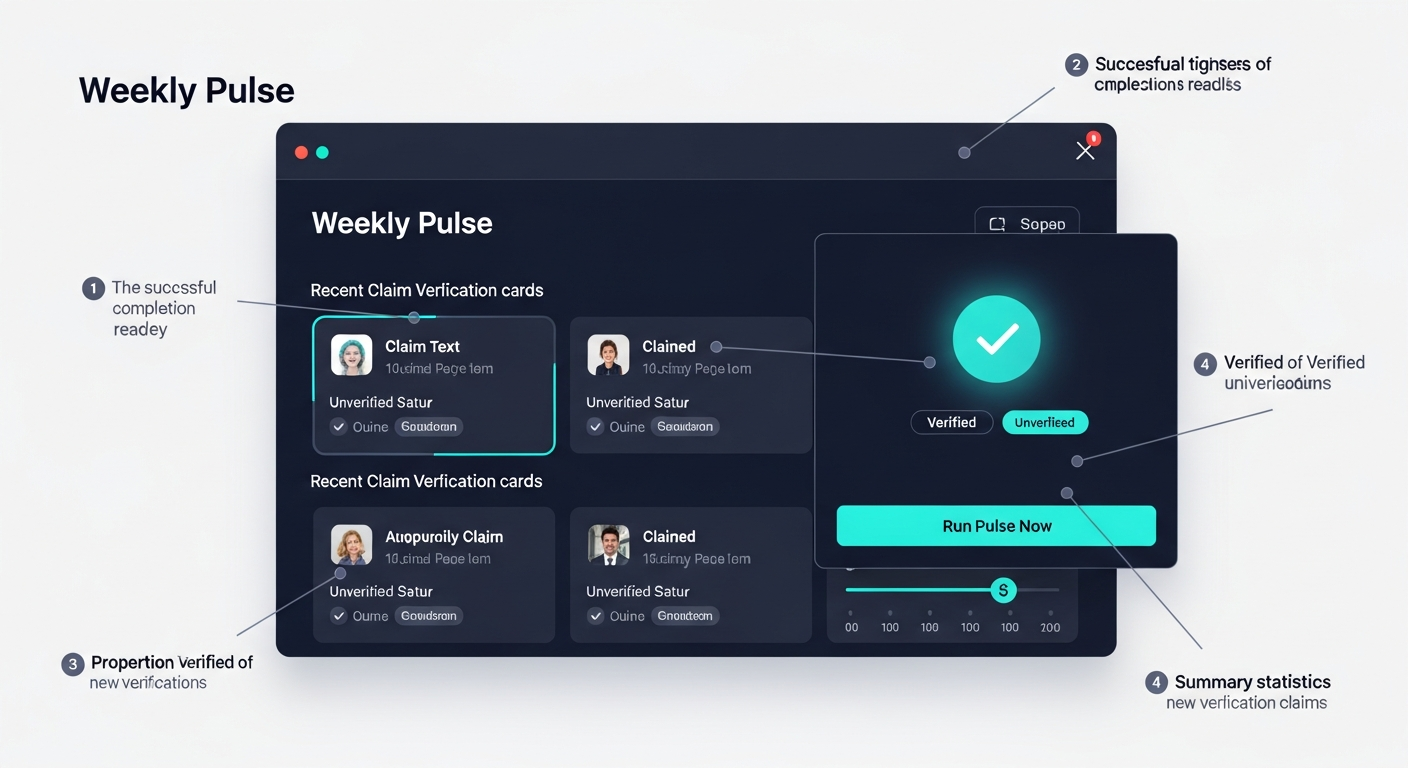
Weekly Pulse automatically verifies factual claims in your notes on a regular basis, ensuring your knowledge base remains accurate. It is a Pro and Enterprise feature.
- 1 Click "Weekly Pulse" in the header
- 2 Review verification status of recent claims
- 3 Click "Run Pulse Now" for manual verification
14 Learning Artifacts Generator
Enterprise Feature
The Learning Artifacts Generator is available exclusively on Enterprise plans.
Generate personalized study materials based on your notes using evidence-based learning science. The system creates artifacts tailored to your learning profile and preferences.
What You Can Generate
Condensed overviews of key concepts with customizable depth
Diagrams, flowcharts, and concept maps described for easy creation
Retrieval practice exercises and application problems
Spaced repetition schedules and session-by-session guides
How to Generate Artifacts
- 1 Navigate to a note or course you want to study
- 2 Click the "Generate Artifacts" button
- 3 Configure your learning profile (or use defaults)
- 4 Review generated summaries, visuals, practice questions, and study plans
- 5 Download or save artifacts for offline study
15 AI Podcast Generator
Pro Feature
The AI Podcast Generator is available on Pro and Enterprise plans. Powered by GPT-4o for script generation and OpenAI Text-to-Speech for narration.
Turn your notes into a commute-ready audio podcast. MHLE generates a narrated script that walks through your note's content via all four analysis lenses — Financial, Ethical, Engineering, and Skeptic — and delivers it as a listenable audio file.
How to Generate a Podcast
- 1 Select a course from the course dropdown
- 2 Click the "AI Podcast" tab in the main navigation
- 3 Choose which notes to include (all course notes, or select specific ones)
- 4 Choose a voice (Alloy, Echo, Fable, Onyx, Nova, or Shimmer) and target duration (5–60 min)
- 5 Click "Generate Podcast"
- 6 Wait for generation — typically 30–90 seconds depending on note volume
- 7 Play directly in the browser or download the MP3 for offline listening
What the Podcast Covers
Main ideas from your notes presented in conversational, digestible language
Each lens (Financial, Ethical, Engineering, Skeptic) addressed in sequence with audio narration
Integrated conclusion pulling together cross-lens insights from your content
Download as MP3 to share with classmates, teammates, or post to Discord
16 Collaborative Podcast Playlists
Pro Feature — Playback
Creating and contributing to playlists requires Pro or Enterprise. Free-tier members can see a playlist's episode list but cannot stream or download audio. Full playback requires an active Pro or Enterprise subscription.
Collaborative Podcast Playlists let a study group pool their individually-generated AI podcasts into a shared, ordered playlist that every group member can listen to — like a shared study queue. Playlists live inside a Study Group and can be exported as RSS feeds or embedded players.
Creating a Playlist
- 1 Open your Study Group and navigate to the Playlists tab
- 2 Click "New Playlist", enter a name and optional description
- 3 Add your own previously-generated podcasts using the "Add Episode" button
- 4 Other group members can also contribute their own podcasts to the playlist
- 5 Drag and drop episodes to reorder the playlist
Listening & Sharing
Stream episodes directly in MHLE with play/pause, skip, and episode queue controls. Pro required.
Subscribe in any podcast app (Spotify, Apple Podcasts, Pocket Casts) using the playlist's RSS URL. Pro required.
Share a public link to the playlist. Non-Pro visitors see a 60-second preview of each episode.
Embed the playlist player in any webpage or LMS using the provided embed code.
17 Knowledge Synthesis Papers
Enterprise Feature
Knowledge Synthesis Papers are available exclusively on Enterprise plans. Generation uses GPT-4o to structure your knowledge graph into a formatted research document.
Transform your knowledge graph into a structured, publishable-quality synthesis document. MHLE traverses your concept connections and organizes them into a formatted paper with sections, citations from your notes, and cross-lens analysis — ready for grant proposals, literature reviews, or research reports.
Paper Sections Generated
High-level synthesis of your knowledge domain with key conclusions
Groups related concepts from your graph into thematic sections
Financial, Ethical, Engineering, and Skeptic perspectives on the synthesized body of knowledge
Areas identified in your graph where additional research is needed
How to Generate a Synthesis Paper
- 1 Ensure your Knowledge Graph has at least 10 connected nodes across your course
- 2 Navigate to the "Synthesis Papers" tab
- 3 Select the course(s) to draw from
- 4 Click "Generate Synthesis Paper"
- 5 Review the generated document — edit sections, then export as PDF or Markdown
18 Living Portfolio
Pro Feature
The Living Portfolio is available on Pro and Enterprise plans. Once enabled, your portfolio has a permanent public URL you can share anywhere.
Your Living Portfolio is a shareable, public page that showcases your complete intellectual journey in MHLE — every course mastered, concept synthesized, knowledge graph connection made, and analysis run. It updates automatically as you learn, showing growth over time.
What Your Portfolio Shows
Number of courses created, notes analyzed, and total knowledge volume
A visual preview of your concept network showing intellectual breadth
Your most significant AI-generated cross-lens analysis results, curated
A chronological map of your intellectual growth since joining MHLE
How to Access & Share Your Portfolio
- 1 Click "Living Portfolio" in the main navigation bar
- 2 Enable your portfolio using the toggle if it's your first visit
- 3 Customize your display name and visibility settings
- 4 Copy your unique public portfolio URL
- 5 Share on LinkedIn, with your advisor, to your lab group, or on college applications
Who Uses Living Portfolio?
- PhD Candidates — Share with dissertation committee to demonstrate breadth of literature coverage
- Research Scientists — Present to lab group as a shared knowledge base entry point
- Lifelong Learners — Demonstrate intellectual curiosity and depth to peers and mentors
- HS Aspiring Researchers — Include the public URL in college application essays as proof of independent research
20 Gamification & Growth
MHLE gamifies your learning progress through a group Knowledge Tree, achievement badges, study streaks, semester wrap-up summaries, leaderboards, and a referral hub — all designed to sustain motivation over a semester.
Knowledge Tree
Every study group grows a shared Knowledge Tree that advances through six stages as group members record study activity. The tree is visible in the group dashboard and can be shared to the Activity Feed.
Achievement Badges
Badges are earned for milestones across five categories. Earned badges can be shared to the Activity Feed or exported as social-media cards.
Study Streaks & Streak Freeze
Your streak counts consecutive days of study activity. Each day you add a note, run an analysis, or record any activity, your streak advances. You can freeze your streak once (e.g., for a planned break) to protect your progress.
Group Leaderboards
Weekly leaderboards rank group members by activity within each course. Leaderboard data refreshes weekly every Monday. Exam Challenge mode lets a group set a target coverage score for a specific exam date and tracks progress toward it.
Semester Wrap-Up
At the end of each semester, MHLE generates a shareable summary of your progress: notes uploaded, groups joined, achievements earned, and longest streak. Access it from Gamification → Semester Wrap.
Referral Hub
Share MHLE with peers and earn points for every successful referral. Points unlock rewards in the Reward Catalog. Referrers also earn a unique discount code that gives the new user 20% off for 3 months.
| Event | Points Earned |
|---|---|
| Referee signs up | 50 pts |
| Referee converts to Pro | 200 pts |
| Referee converts to Enterprise | 500 pts |
| Referee retained 3 months | 100 pts (bonus) |
Reward Catalog
Ambassador Tiers
21 Instructor & Coach Tools
Enterprise / Institutional Feature
Instructor and Coach dashboards are available on verified Enterprise and institutional accounts. Contact your institution's MHLE administrator to have the instructor or coach role enabled on your account.
Instructor Dashboard
The Instructor Dashboard gives faculty a bird's-eye view of every enrolled student's learning health — without reading their notes. Instructors access it at /instructor/dashboard.
Paginated student roster (25 per page) with name/email search. Supports multiple classrooms per instructor. CSV export available for enrollment lists.
Per-student health score (Green / Yellow / Red) based on lens coverage completeness. Shows note count, AI runs, and last-active timestamp.
Coverage gap analysis across the full class. See which syllabus topics have the lowest note coverage across enrolled students.
Click any student to view detailed note coverage by lens, AI run history, and gap status breakdown for that student.
Health Score Legend
Coach Dashboard
The Coach Dashboard is designed for learning coaches, mentors, and program directors who need to compare knowledge graphs across a cohort of learners. It requires verified Enterprise access and an explicit access grant from each participant.
Lists all participants who have granted the coach access, showing node count, edge count, health score, last active, and semantic zone distribution per participant.
Compare 2–6 participants simultaneously. Generates an alignment score (0–100), shared concept nodes, contradicting edges, and per-participant blind spots.
Historical snapshots of alignment scores over time for a selected participant group, enabling coaches to track cohort convergence.
Generate a downloadable comparison report (PDF or Markdown) for 2–6 participants. Raw note text is never included — only concept-level metadata. Rate-limited to 10 reports per hour.
Per-Course Access Control
When a participant grants coach access, they can optionally restrict it to specific courses. The coach then sees only notes from those allowed courses in all comparison views — preventing inadvertent exposure of work from unrelated subjects.
22 Persona-Specific Toolkits
Master's Personas Also Unlock
In addition to the features below, Master's students get the full Master's Module (Section 23) including discipline-specific Exam Focus questions, Wicked Problem simulations, Case Study Workspaces, and — for Business/Policy personas — the Reimbursement Letter Generator.
Certain features are unlocked only for users with specific personas. These are accessed from within the main app once your persona is set correctly.
🎓 PhD Exam Focus Mode & Defense Countdown Pro — Graduate / Doctoral Persona
Users with the Graduate / Doctoral persona (phd_candidate) have access to a dedicated progress summary and defense countdown dashboard.
Set your defense date in Settings → Profile. MHLE displays a live countdown in weeks and sends automated milestone reminder emails as key dates approach.
A dedicated endpoint at /api/v2/progress/phd-summary aggregates your literature review coverage (PDF annotation count), research thread count, and weeks remaining until your defense date. A milestone email is triggered when you reach 10 annotated papers.
💼 MBA Reimbursement Letter Generator Pro — MBA / Working Professional Persona
Generate a professionally formatted PDF letter addressed to your employer's HR department, documenting your MHLE subscription as a qualifying professional-development expense for reimbursement.
What the Letter Includes
- • Addressed letter with your employer's name and HR department
- • Description of MHLE's professional development value
- • Current subscription pricing table (Pro Monthly: $19/mo · Pro Annual: $190/yr)
- • List of your active MBA courses in MHLE
- • Your 30-day platform usage summary (AI analyses, verifications, uploads)
- • MHLE platform letterhead with Cognitive Engine, Inc. contact information
Access from: Dashboard → MBA Toolkit → Generate Reimbursement Letter. Provide your employer name, full name, and program name when prompted.
📄 Bulk PDF Upload Pipeline Persona-Gated — Graduate / Doctoral & Research Scientist Personas
Upload up to 50 PDFs (max 50 MB each) in a single batch. MHLE processes them in parallel and adds them to your note library with full text extraction. Designed for literature review ingestion workflows common to PhD students and research scientists.
Access Model
Bulk PDF upload is gated by persona only — your MHLE persona must be set to Graduate / Doctoral (internal key: phd_candidate) or Research Scientist (internal key: research_scientist). There is no separate subscription-tier requirement; any plan with the correct persona can use this feature.
Requirements
- • Persona must be set to Graduate / Doctoral or Research Scientist in Settings → Profile
- • All files must be PDF (
application/pdfMIME type) — other formats are rejected - • Maximum 50 files per batch; maximum 50 MB per file
- • Endpoint:
POST /api/v2/notes/bulk-pdf-upload
23 Master's Module
The Master's Module is a discipline-specific experience layer for graduate-level students across six fields: Business, STEM, Public Policy, Humanities & Education, Law, and Nursing. It adapts AI analysis depth, exam preparation, simulation scenarios, and social collaboration to the rigor and conventions of your specific graduate program.
Persona-Scaled Exam Focus Mode
Every Master's persona unlocks a persona-aware Exam Focus Mode that generates discipline-appropriate practice questions from your notes. The question type, count, and framing adapt to your field:
| Master's Persona | Question Type | Count | Button Label |
|---|---|---|---|
| Business (MBA, MFin, MAcct) | Case Questions | 8 | Generate Likely Case Questions |
| STEM (MS CS, Data Sci, Engineering) | Defense Questions | 10 | Generate Likely Defense Questions |
| Public Policy (MPA, MPP, IR) | Policy Memo Questions | 8 | Generate Likely Policy Memo Questions |
| Humanities & Education (MA, MFA, MEd) | Seminar Questions | 10 | Generate Likely Seminar Questions |
| Law (JD, LLM, SJD) | Bar Exam Questions | 10 | Generate Likely Bar Exam Questions |
| Nursing (MSN, CNL, NP, DNP) | Clinical Questions | 8 | Generate Likely Clinical Questions |
How to Use Exam Focus Mode
- 1Open any note you've already analyzed with AI
- 2Look for the Exam Focus button in the analysis panel
- 3Click the button — MHLE reads your note content and generates questions tailored to your discipline
- 4Review, answer, and save the questions for later review
Discipline-Specific Wicked Problem Simulations
When you run a Wicked Problem Simulation with a Master's persona, the scenario is framed in your discipline's domain using real-world stakeholders, constraints, and theoretical frameworks:
Capital allocation dilemmas, M&A trade-offs, ESG vs. profitability tensions, supply chain ethics, and board governance failures. References Porter's Five Forces, stakeholder theory, and BCG matrix.
Research ethics dilemmas, algorithmic fairness trade-offs, technical debt in safety-critical systems, IP disputes, and dual-use technology risks. References IEEE/NSPE ethics codes.
Regulatory design trade-offs, equity vs. efficiency conflicts, interagency coordination failures, and policy implementation gaps. References Kingdon's policy streams and cost-benefit analysis.
Representation dilemmas, academic freedom vs. duty-of-care, archival access disputes, and cultural heritage commercialization. References post-colonial, feminist, and critical race theory.
Attorney-client privilege dilemmas, ethical conflicts under Model Rules, constitutional tensions, tort liability trade-offs, and criminal defense dilemmas. Cites landmark cases by name.
Patient safety vs. resource constraints, informed consent under impaired capacity, staffing allocation, and interprofessional team conflict. References nursing ethics and clinical guidelines.
Case Study Collaborative Workspace
The Case Study Workspace lives inside your Study Group and provides a structured, multi-phase environment for collaborative case analysis — designed specifically for graduate-level group work. It supports role-based contributions, phase-gated progression, and an instructor audit trail.
Study Group Integration
Case workspaces are nested inside Study Groups. Only group members can participate. Group admins (owners or admins) create workspaces; all active members contribute. The workspace feeds the group's Activity Feed, sends in-app notifications on phase advances, and finalised decisions are logged as public group events.
The Four Phases
Define the central issue, stakeholders, and constraints. Each group member frames the problem from their own angle. The Communicator role leads this phase.
Four analytical slots: Hypotheses (Analyst), Evidence (Analyst), Critique (Skeptic), and Synthesis (Synthesiser). Each slot is owned by a role and filled collaboratively.
Each member posts their Position statement, then casts a Vote. The group finalises a single Decision Record that captures the majority position plus dissenting views.
Individual reflection essays on what changed, what was missed, and what the group learned. Reflections are private to each member until the phase is complete.
Workspace Roles
| Role | Responsibility | Owns Slot(s) |
|---|---|---|
| Analyst | Builds hypotheses and gathers evidence | hypotheses, evidence |
| Skeptic | Challenges assumptions and surfaces weaknesses | critique |
| Synthesiser | Weaves divergent views into a coherent narrative | synthesis |
| Communicator | Frames the problem and articulates the group story | frame |
Creating a Workspace
- 1Navigate to your Study Group and open the Workspaces tab
- 2Click "New Workspace" — you must be a group admin (owner or admin role)
- 3Enter a Case Title and paste the case text (up to 50,000 characters) or upload a PDF/audio file for AI extraction
- 4MHLE auto-assigns roles to all members. Admins can re-assign roles at any time.
- 5The workspace opens at the FRAME phase. Start contributing.
Role Rotation
To ensure every member experiences every perspective, group admins can trigger a Role Rotation at any time. MHLE suggests a fair rotation that balances past role assignments. Rotation history is stored and visible to all members.
Instructor Audit Trail
Every contribution, phase advance, role change, and decision finalisation is logged in an immutable audit trail accessible at /api/v1/workspaces/<id>/audit. Instructors reviewing the workspace see timestamps, author names, content snapshots, and phase transitions — useful for grading group case-work.
MBA Reimbursement Letter Generator
Master's students in Business and Public Policy personas can generate a professionally formatted PDF reimbursement letter addressed to their employer's HR department, documenting MHLE subscription usage as a qualifying professional-development expense.
What the Letter Includes
- • Formal letter addressed to your employer's HR / Professional Development department
- • Description of MHLE's value for your specific program
- • Current subscription pricing (Pro Monthly $19/mo, Pro Annual $190/yr, Enterprise $49/mo)
- • List of active courses in your MHLE account
- • 30-day platform usage summary (AI analyses, verifications, uploads)
- • MHLE letterhead with Cognitive Engine, Inc. contact information
Access from: Dashboard → MBA Toolkit → Generate Reimbursement Letter. Provide your employer name, full name, and program name.
Master's Persona Quota Benefits
All Master's personas receive the same 2× daily PDF upload multiplier as Graduate/Doctoral and Research Scientist personas. This means 10 daily PDF uploads on Free, 40 on Pro, and unlimited on Enterprise — critical for literature review and case material ingestion workflows.
Switching Between Master's Personas
Go to Settings → Profile → Persona and select any Master's persona. Changes take effect immediately — your Exam Focus button text, simulation domain, and analysis modifiers all update without re-logging. If you started as "MBA / Working Professional" and later enroll in an MPA program, simply switch to "Master's — Public Policy."
24 Usage Dashboard & Plans
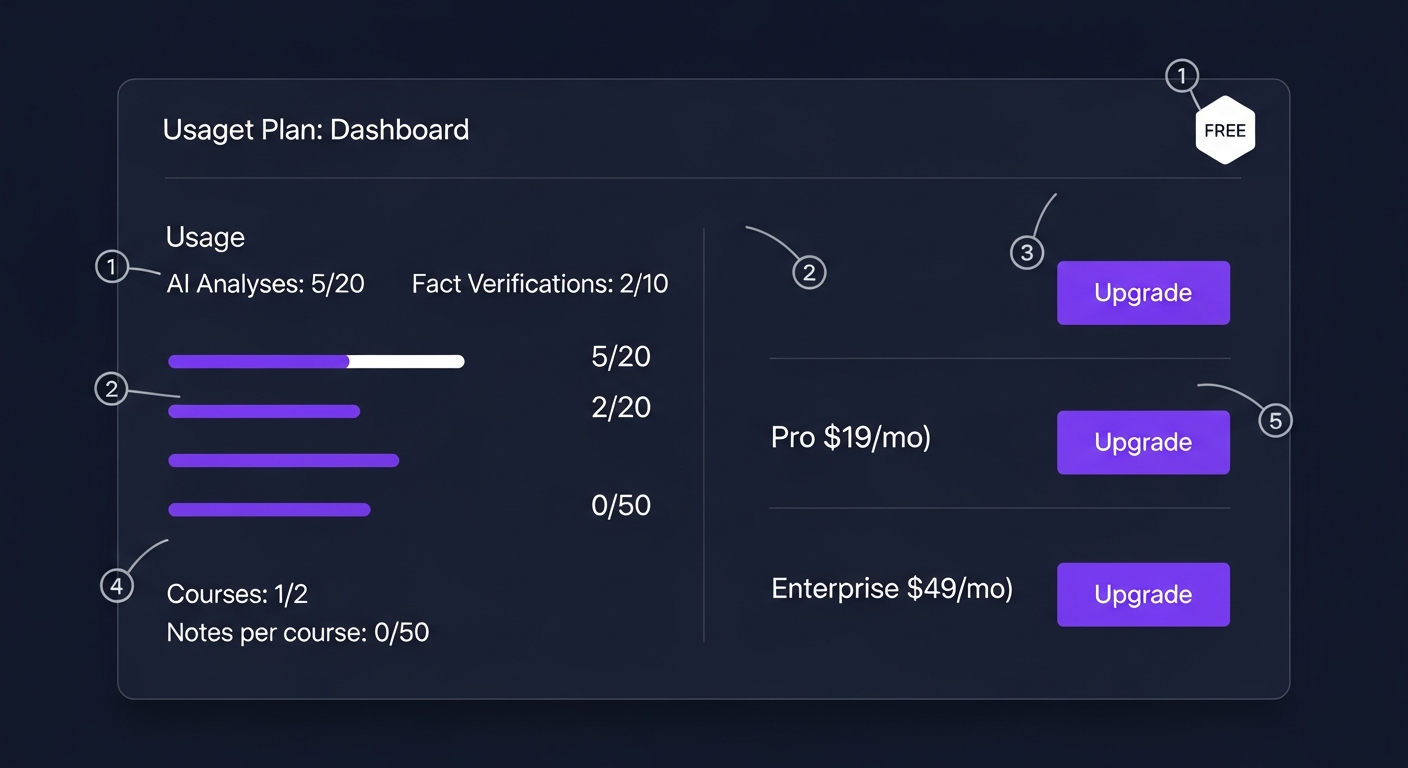
Plan Comparison
| Feature | Free | Pro ($19/mo) | Enterprise |
|---|---|---|---|
| AI Analyses | 20/month | 500/month | Unlimited |
| Fact Verifications | 10/month | 200/month | Unlimited |
| Courses | 2 | 20 | Unlimited |
| Notes per Course | 50 | 500 | Unlimited |
| Daily Notes | 10 | 50 | Unlimited |
| Daily PDF Uploads | 5 (×2 for PhD/Researcher) | 20 (×2 for PhD/Researcher) | Unlimited |
| Daily Audio Uploads | 2 | 10 | Unlimited |
| Knowledge Graph | No | Yes | Yes |
| Advanced Simulations | No | Yes | Yes |
| Weekly Pulse | No | Yes | Yes |
| AI Podcast Generator | No | Yes | Yes |
| Collaborative Playlist Playback | No | Yes | Yes |
| Living Portfolio | No | Yes | Yes |
| Study Group Creation | No (join only) | Yes | Yes |
| Note Requests / month | 2 | Unlimited | Unlimited |
| Gap Hunter Depth | 1 level | 3 levels | Unlimited |
| Learning Artifacts Generator | No | No | Yes |
| Knowledge Synthesis Papers | No | No | Yes |
| Bulk PDF Upload (up to 50 files) | All plans — persona-gated only (Graduate/Doctoral or Research Scientist persona required) | ||
| Instructor Dashboard | No | No | Yes (instructor role required) |
| Coach Dashboard & Reports | No | No | Yes (verified Enterprise) |
| Priority Support | No | No | Yes |
25 Troubleshooting
"I can't see my notes"
- Check that you're logged in
- Check the course filter — select "All Courses"
- Refresh the page
"I've exceeded my usage limit"
- Wait until the start of next month for monthly limits to reset
- Wait until midnight (UTC) for daily limits to reset
- Upgrade to Pro or Enterprise for higher limits
"File upload failed"
- Check file size (max 75 MB for individual notes; max 50 MB for bulk PDF pipeline)
- Ensure file format is supported (.pdf, .mp3, .wav, .ogg, .m4a, .webm, .png, .jpg, .jpeg, .gif, .webp)
- Check your daily upload quota in the Usage Dashboard
- Try a different file
"I can't create a study group"
- Creating groups requires a Pro or Enterprise subscription
- Free-tier accounts can join up to 1 group
- Upgrade your plan to unlock group creation
"The playlist is visible but audio won't play"
- Playlist audio playback requires a Pro or Enterprise subscription
- Free-tier accounts can see episode lists but cannot stream audio
- A 60-second preview is available via the shared playlist link even for free/anonymous visitors
"The MBA Reimbursement Letter option isn't visible"
- Ensure your persona is set to MBA / Working Professional in Settings → Profile
- This feature is only accessible to the MBA persona
"Social features are blocked for my account"
- If you are under 18, parental consent is required to access social features
- Ask a parent or guardian to complete the parental consent step in your account settings
- Public sharing and the referral leaderboard remain restricted for minor accounts even with consent
"My Exam Focus button shows the wrong question type"
- Go to Settings → Profile → Persona and verify your persona matches your program
- Changes take effect immediately — no re-login required
- If you just changed personas, refresh the page to load the new profile
"I can't create a Case Study Workspace"
- Workspace creation requires group admin status (owner or admin role)
- Ensure you are an active member of the study group
- The workspace tab appears inside a Study Group — create or join a group first
"My Wicked Problem simulation feels generic, not discipline-specific"
- Verify your persona is set to a Master's discipline (not a generic "Graduate" persona)
- The six Master's personas each inject domain-specific framing, stakeholders, and frameworks
- Generic personas fall back to a broad graduate-level scenario without discipline depth
"I don't see the Reimbursement Letter option"
- This feature is available to MBA / Working Professional and Master's — Business personas only
- Master's — Public Policy personas also have access
- Update your persona in Settings → Profile if your program qualifies
19 Social & Collaboration
MHLE includes a full social layer for peer collaboration — study groups, note exchange, and an activity feed — all built with academic integrity controls so instructors can set sharing rules per course.
Study Groups
Study groups let you organize with classmates around a shared course. Each group has its own leaderboard, shared note pool, collaborative playlists, gamification tree, and — for graduate-level groups — Case Study Collaborative Workspaces (see Section 23).
Creating a Study Group
Note Requests & Peer Exchange
Request notes from a specific classmate for a concept you haven't covered yet. The note provider approves or partially approves the request, then the content is shared with a watermark preserving authorship.
Activity Feed & Notification Center
The Activity Feed shows real-time group activity — new notes shared, badges earned, streak milestones, and knowledge tree growth. Privacy settings let you control what you broadcast to the group.
Academic Integrity Controls
Instructors can set per-course sharing policies that automatically restrict what students can share:
Privacy for Minor Users (Under 18)
Users under 18 require parental consent before accessing any social features. Public sharing and the public leaderboard are always restricted for minor users, even with parental consent. All social features comply with applicable privacy regulations.